Hermes Application Installation Guide
Thank you for choosing our Hermes application. Below you will find detailed instructions for downloading and installing the application, along with everything you need to get started with Hermes.
1. Download Java
Download Java 8 from one of the links below, depending on your operating system.
On the Azul download page you can also select a more specific version of Java that matches your system architecture and preferred package format.
2. Download Hermes
Download the compressed application file by clicking the button below.
3. Extracting the File — IMPORTANT: Do not skip this step!
Extract the downloaded compressed file to the location where you want the application installed. (It is recommended to create a Hermes folder on your drive, where the application can store domain data.)
The image below shows how to extract on Windows. Right-click the compressed folder > 7-Zip > Extract files, then save it to your desired folder.
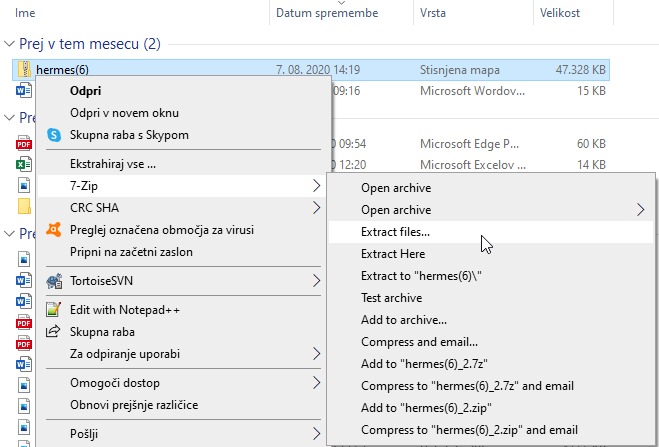
Inside the extracted folder you will find a file called Hermes.jar (it may appear as just "Hermes" depending on your computer's display settings).
4. Launching Hermes
On the first launch, the application will display an input field for your company domain and password.
This field only appears the first time on each new device, as it is used to identify the company using the application.
Your login credentials were sent to you via email. Keep them in a safe place and do not share them with anyone who is not authorized to access and use the application.
Enter your domain and password first.
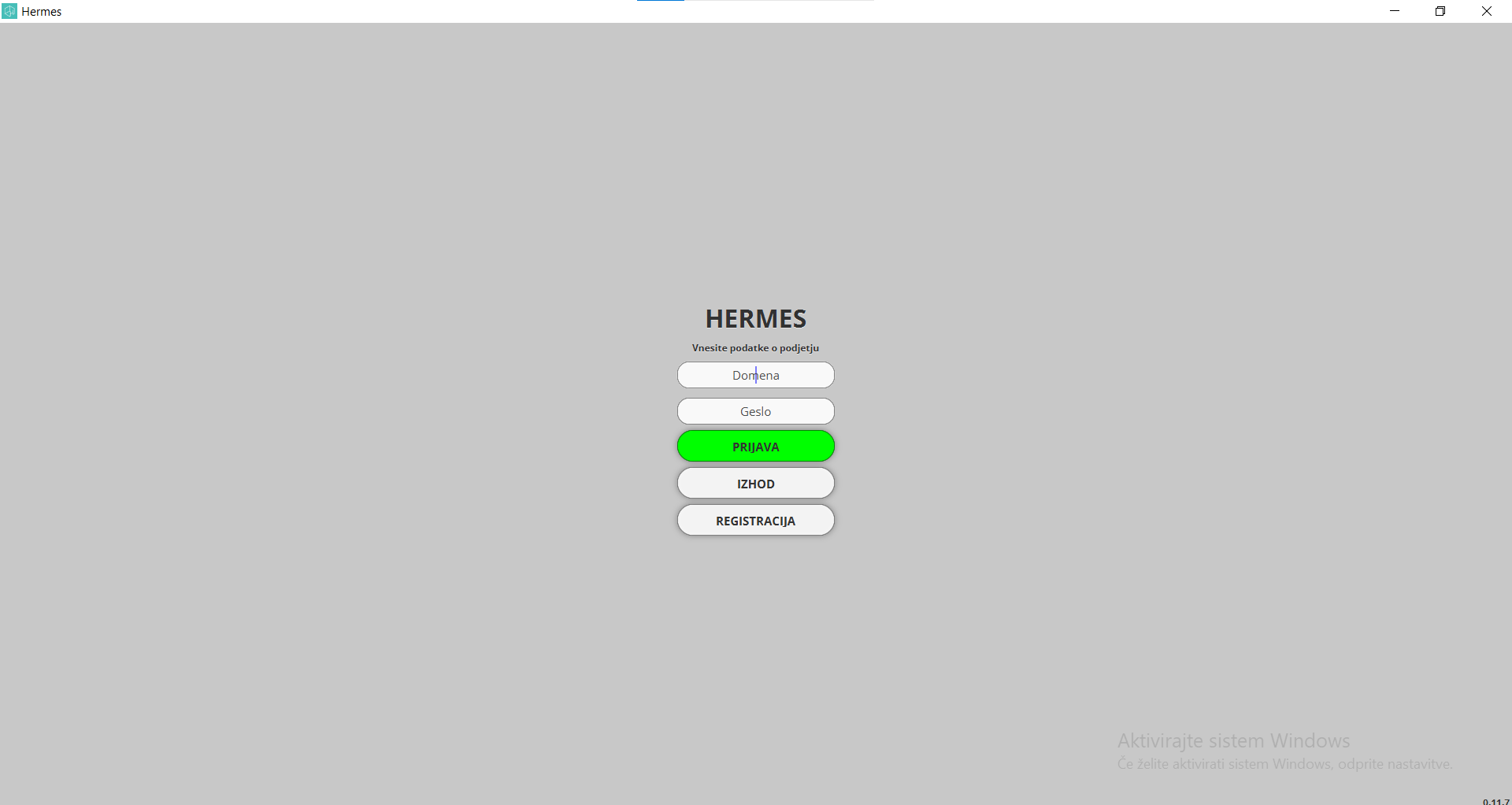
- Logging into Hermes
After successful company verification, a user login window will appear. Enter your username and password and press Enter. You can use the Remember me option to save your credentials.
In the bottom-left corner, there is a Delete access option, which removes the stored user and domain data. This means you will need to re-enter your domain credentials the next time you use the application.
The bottom-right corner displays the application version.
The top-right corner shows the reader status. The reader is used for logging customer visit check-ins and check-outs. If no reader is connected, it will display no connection. If the reader is connected, it will display connected.
In the center you will see your company icon and company name.
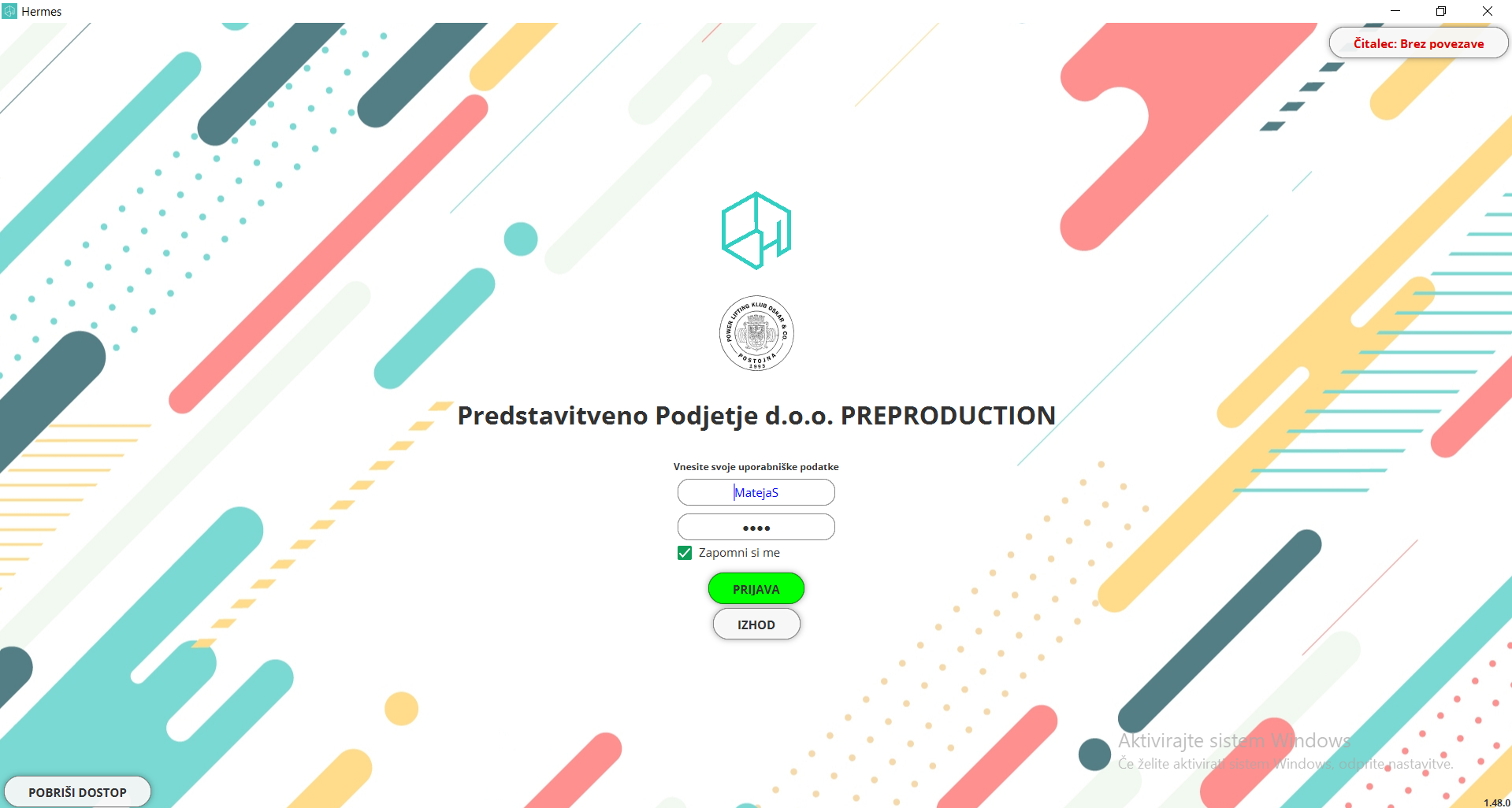
Click the green Login button to sign into your user profile. You will need to set a "device name". We suggest using your name and the device type, e.g. Mateja - desktop.
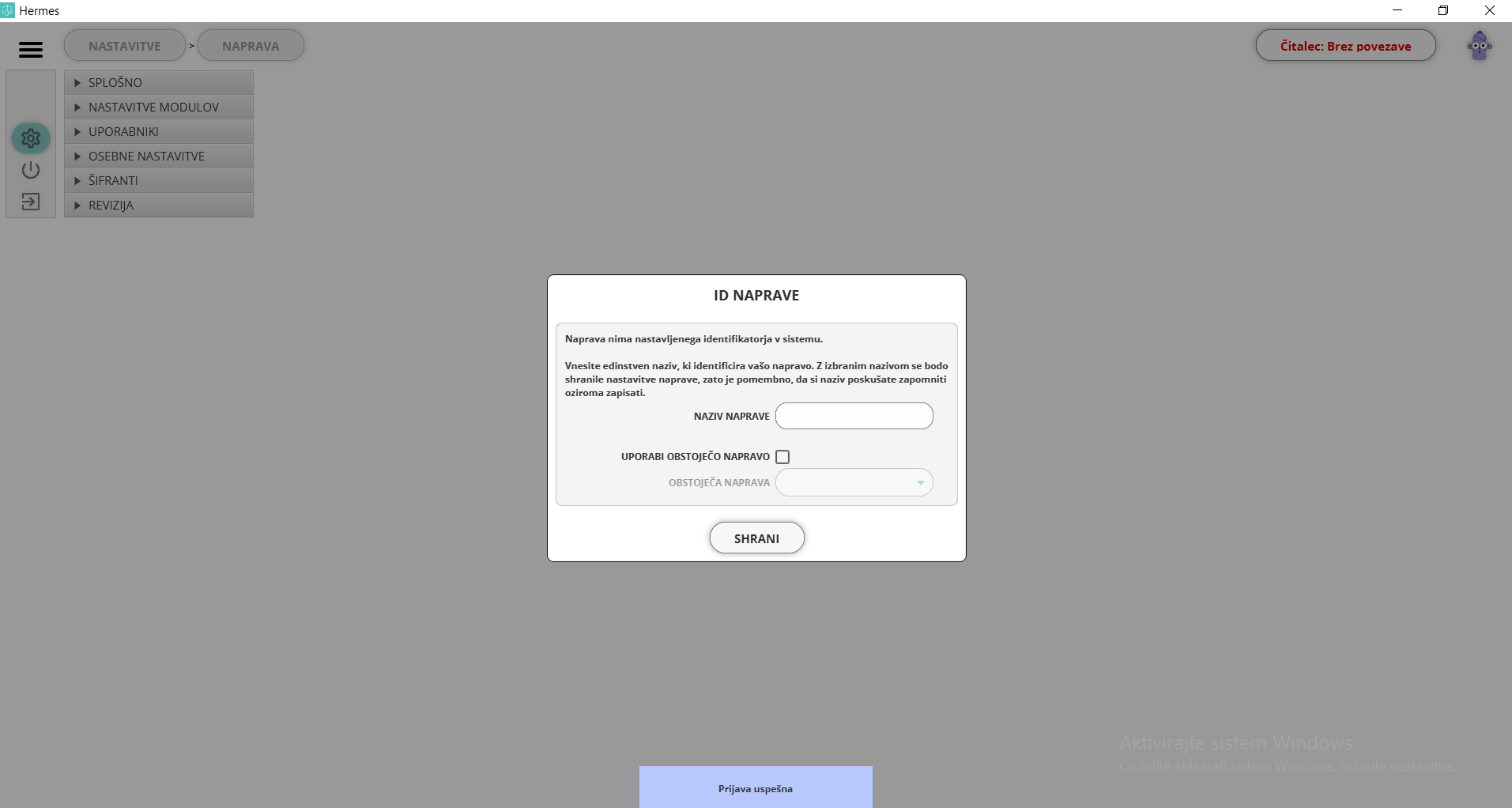
5. Setting Up Hermes (First Use)
After your first login, we recommend changing your password by following the instructions in Personal Settings - Change Password. Then set your device language by following General - Device. To apply the language change, log out of the application and log back in.
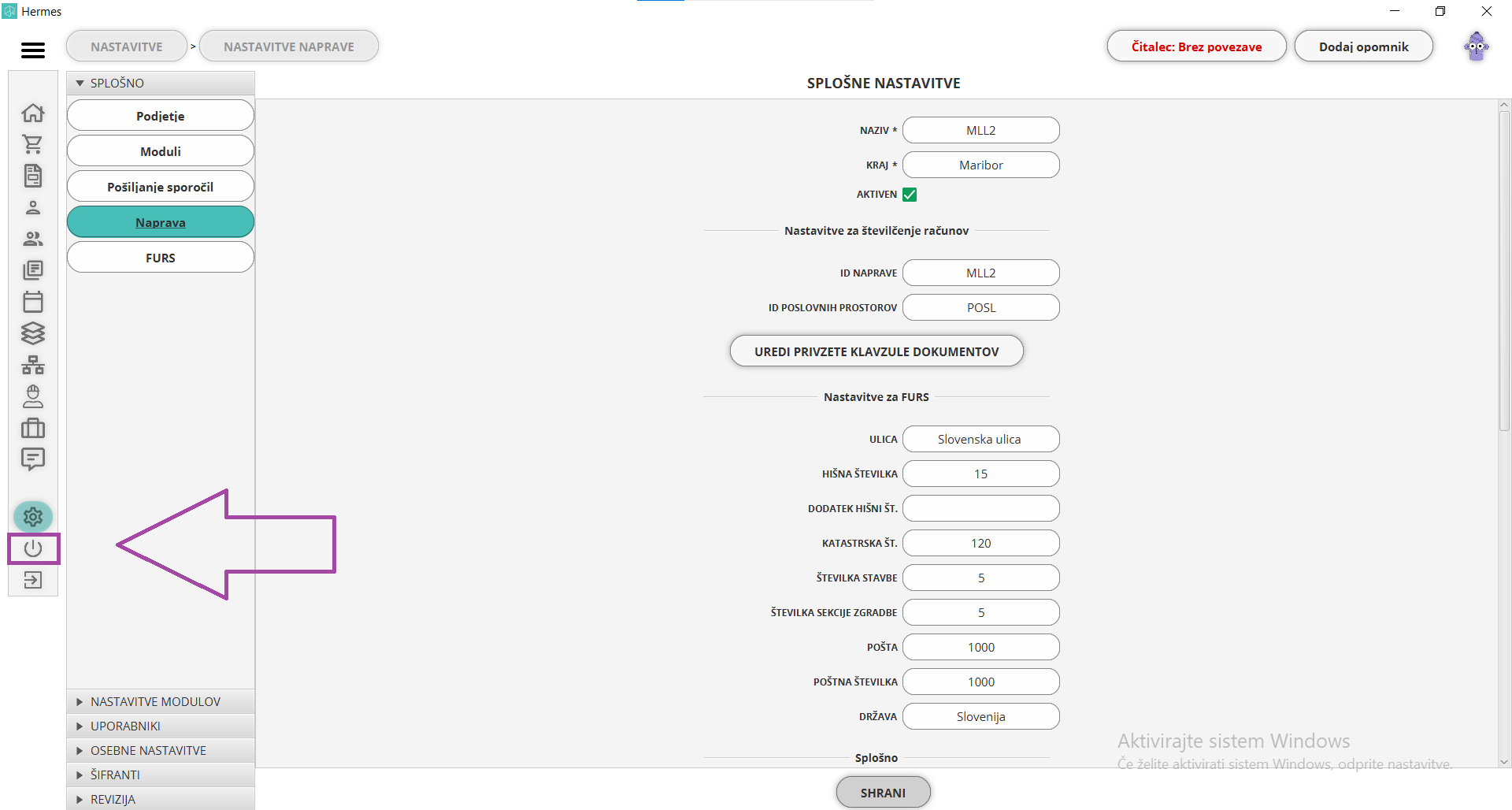
Next, configure the application settings. You can start with the general company settings by following the General instructions. After that, set up user groups by following User Settings. Then create new users who will be using Hermes and add them to the appropriate groups.
Important: when you set up usernames, an auto-generated password will be displayed on screen — share it with the respective user. If you assign an email address to a user, they will receive the password via email. On their first login, they should change their password in Personal Settings.
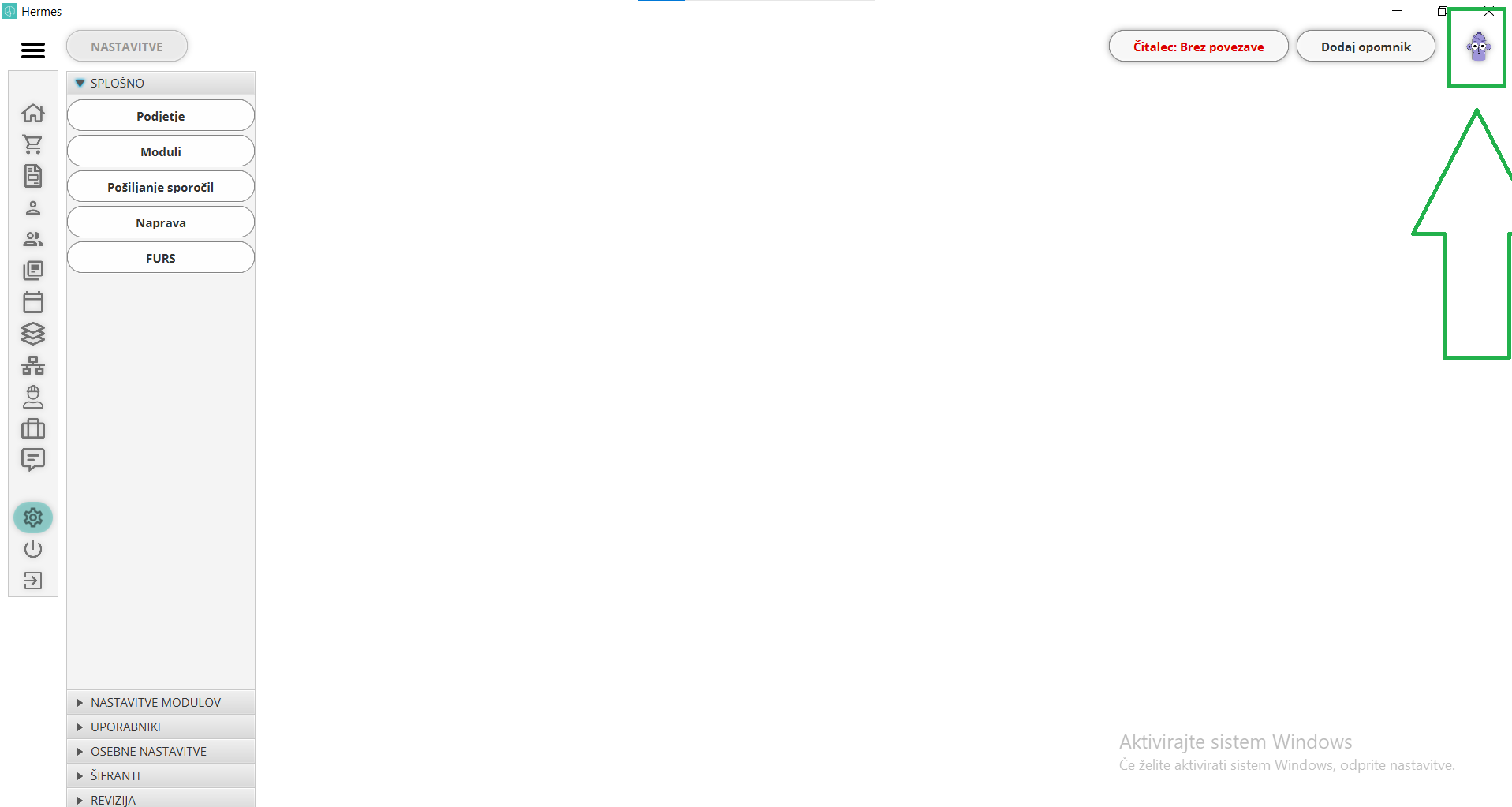
When configuring modules, each module has a Circus Bob icon in the top-right corner — click it for help, and it will open the relevant settings page on the website.
If you encounter any issues, we are available at the provided email address, phone number, or via the contact form.
Application Updates
On the List of Updates page, you can view past application versions and see what is currently in development. Each time Hermes starts, it automatically checks for new versions and downloads them if available.
Registration — If You Are Missing Access Credentials
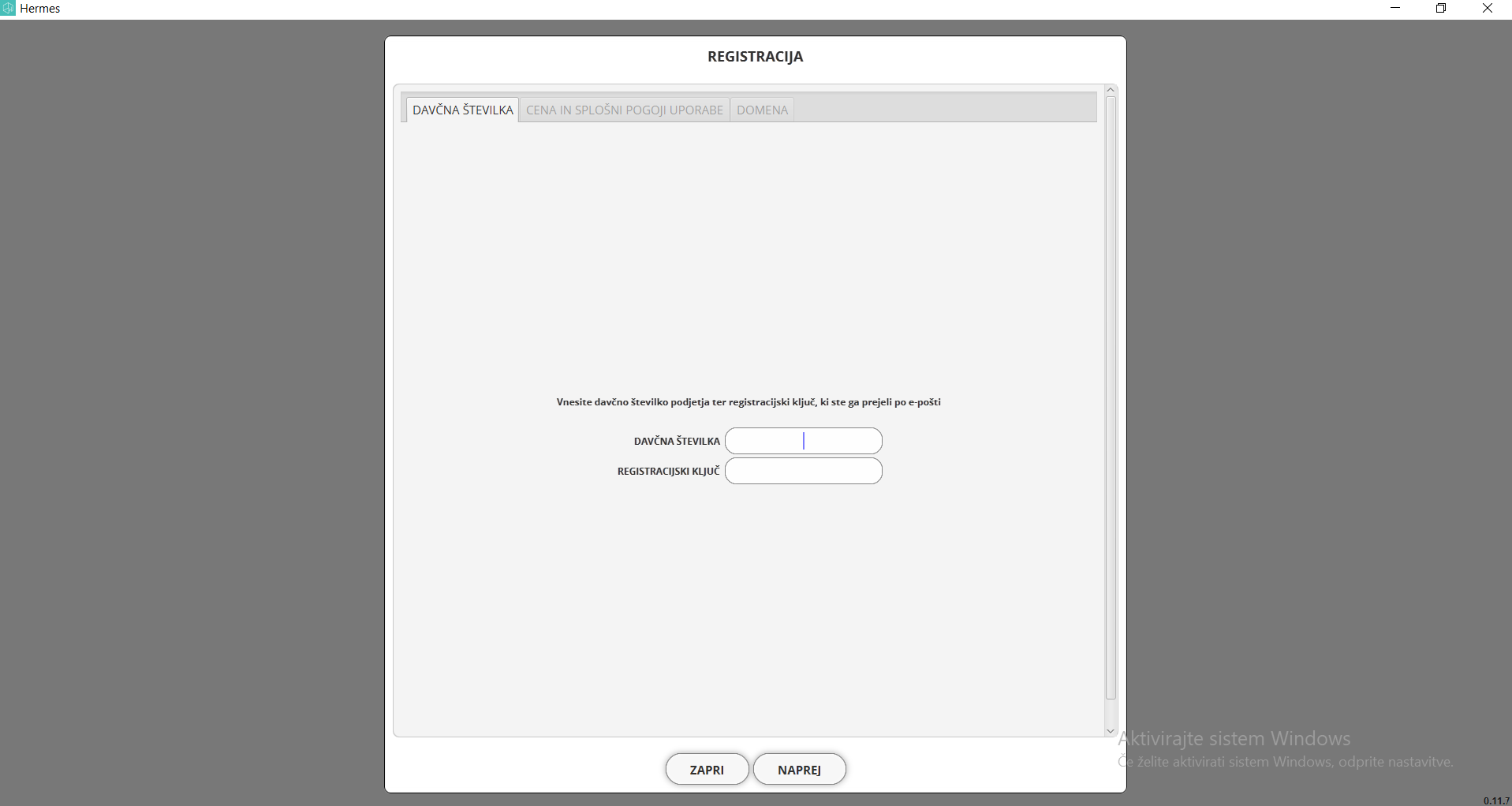
If you have installed Hermes but do not have a domain created or do not have domain credentials, click the "Registration" button. A new window will open asking for your company's tax number and the registration key you received via email. Follow the on-screen instructions to complete the remaining steps.